
• 0 Shopping Cart
  • Account
    • Login
    • Register
    • Forgot Password?
  • Home
  • Hosting
    • cPanel Hosting
    • Direct Admin Hosting
    • Managed Wordress Hosting
    • Become Reseller
  • Servers
    • VPS Servers
    • Dedicated Servers
  • Domains
    • Domain Registration
    • Domain Transfer
  • Support
    • Submit Tickets
    • Knowledgebase
    • Announcements
    • Network Status
  • Affiliates
  • More

Knowledgebase

  1. Portal Home
  2. Knowledgebase
  3. Plesk
  4. General (Plesk)
  5. How to Change View Mode in Plesk

  Categories

Backup/Restore
4
Cloudflare (cPanel)
9
CloudLinux (cPanel)
10
cPanel - Control Panel
24
Databases
11
DirectAdmin Hosting Tutorials
48
DNS - Nameservers
6
Domain Management
10
Email
17
FTP
9
Installing a Control Panel
6
Mail Filters & SPAM
8
Mobile
11
Others
3
PayPal
7
Plesk
47
Security
10
SiteWorx (Control Panel)
58
Softaculous
69
SolusVM
18
SSL
5
Virtualizor
19
WHM
18
WordPress
17

  Categories

  Support

My Support Tickets
Announcements
Knowledgebase
Downloads
Network Status
Open Ticket

How to Change View Mode in Plesk Print

  • 0


You can change View Mode in Plesk in the following way.


1. Log in to your Plesk account.


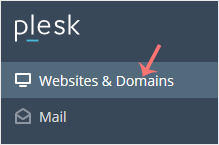
2. Click Websites & Domains from the Sidebar Menu.
 

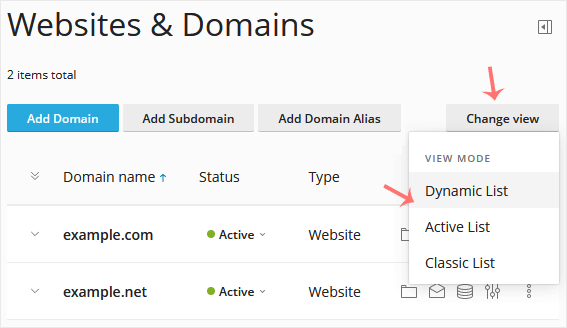
3. If the view mode is Dynamic List, click on Change View on the right side and switch to your preferred mode.
 

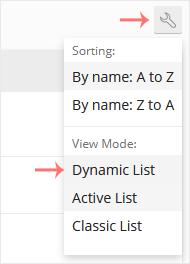
However, if the view mode is Active or Classic List, click on the wrench icon to change it.

Was this answer helpful?

Related Articles

How to Log in to Plesk A tutorial on how to access the Plesk Control Panel.   After you place an order and make a... How to Edit a File in the Plesk File Manager   1. Log in to your Plesk account. 2. Click on Files from the Sidebar Menu.   3. Under File... How to Change the Password of a Plesk Account   Follow these steps to change your Plesk account password.   1. Log in to your Plesk account.... How to Reset a Plesk's Account Password   Follow these steps to reset your Plesk account password.   1. Open your Plesk login URL.... How to Update a Plesk Account's Email Address   Follow these steps to change your Plesk contact email address.   1. Log in to your Plesk...
« Back

  Support

My Support Tickets
Announcements
Knowledgebase
Downloads
Network Status
Open Ticket

30-Day Money-Back Guarantee!

If you are not happy with our services for whatever reason,
we’ll refund your payment. No hassle, no risk.

Get Started Now
Hostiko Logo

We offer high-performance hosting for agencies, ecommerce, businesses, & side-hustlers. Unmatched speed, reliability, and 24×7 expert support.

Our Services

  • cPanel Hosting
  • DirectAdmin Hosting
  • Managed WordPress
  • Reseller Hosting

Hosterr

  • About Hosterr
  • Help Center
  • Network Status
  • News & Update

Contact Us

  • Submit A Ticket
  • Knowledge Base
  • Privacy Policy
  • Acceptable Usage Policy

Copyright © 2026 HOSTERR. All Rights Reserved.


Loading...
Loading...
Choose language
العربية
Azerbaijani
Català
中文
Hrvatski
Čeština
Dansk
Nederlands
English
Estonian
Persian
Français
Deutsch
עברית
Magyar
Italiano
Macedonian
Norwegian
Português
Português
Română
Русский
Español
Svenska
Türkçe
Українська

Choose Currency

$ USD
£ GBP
€ EUR
$ AUD
Rs PKR

Generate Password

Please enter a number between 8 and 64 for the password length